Platform tutorial
A step-by-step walkthrough of BitBreakout, from creating your account to placing and managing your first trade. Everything here is demo: you trade a virtual balance and never risk your own money. Screenshots are shown in the dark theme (the default); you can switch to a light theme from the top bar at any time.
Steps
1. Create your account
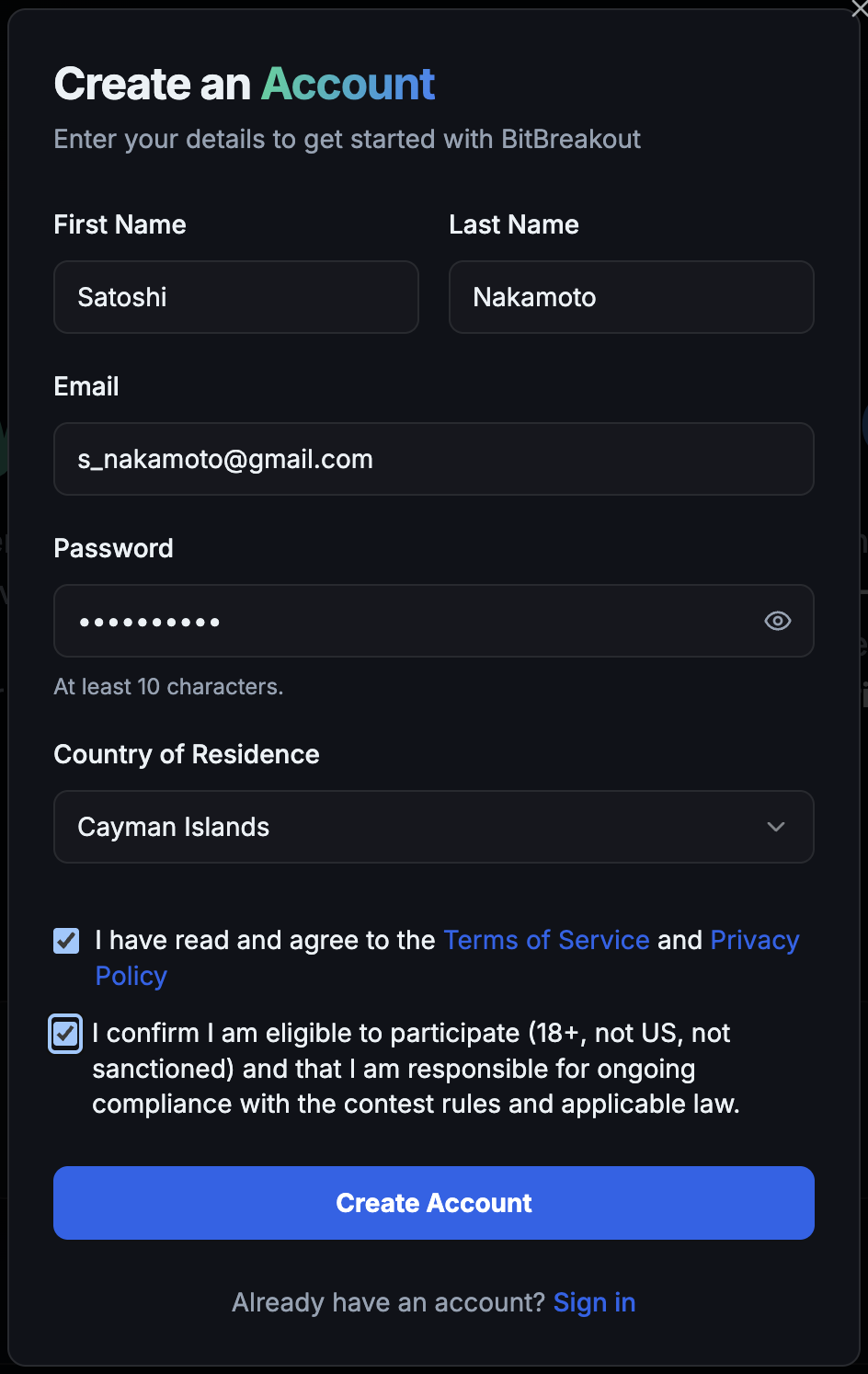
From the landing page, click Get started. Enter your first name, last name, email, a password, and your country of residence, then tick the two boxes to accept the Terms and Privacy Policy and to confirm you are eligible (18+, not in a restricted jurisdiction).
Your password needs at least 10 characters and must include an uppercase letter, a lowercase letter, and a number. Spaces are not allowed; special characters are allowed but not required.
2. Verify your email
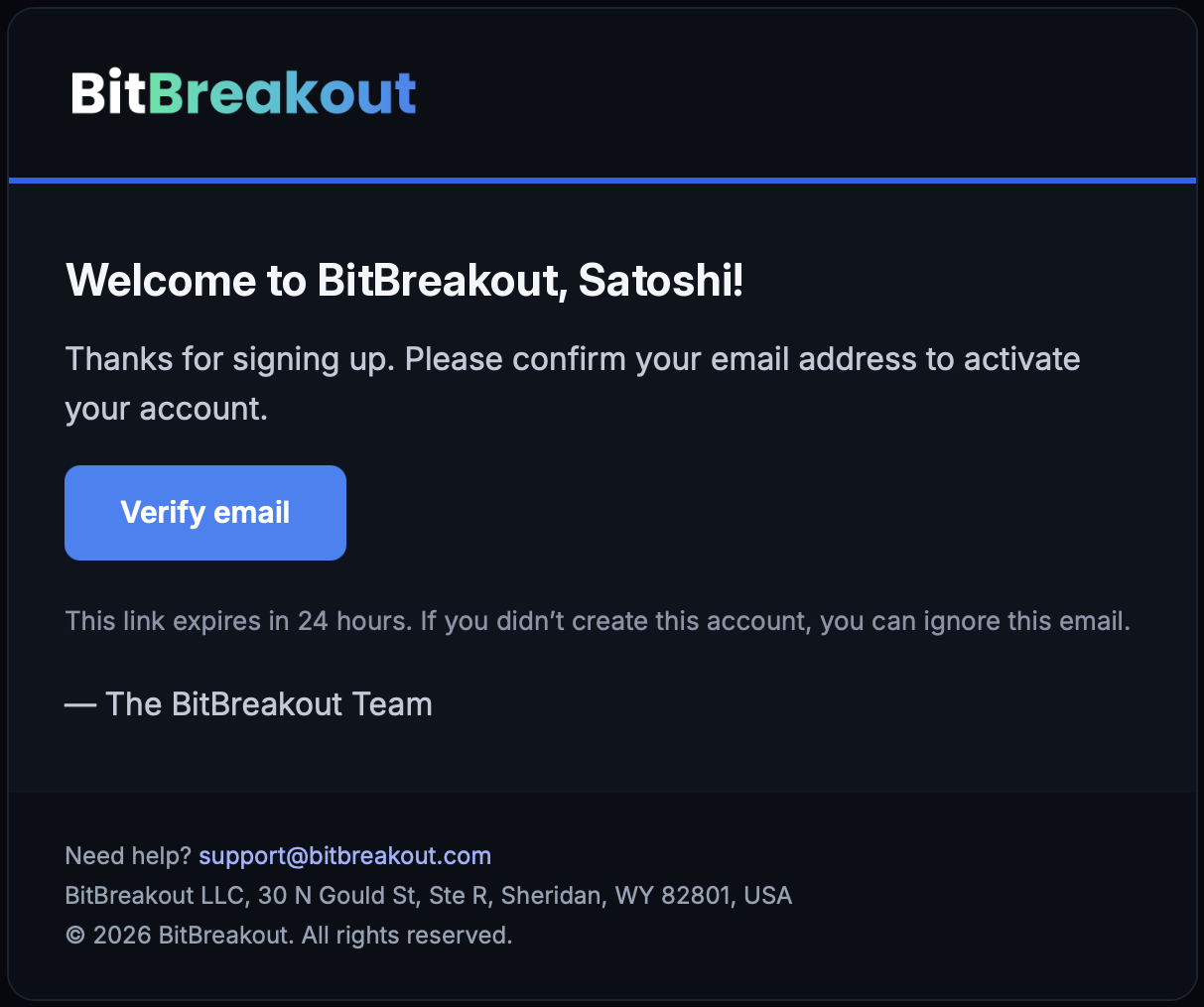
We email you a verification link (valid for 24 hours). Click it to confirm your address. You must verify before you can join a contest. If it does not arrive, check spam, confirm the address, and request a new link from the sign-in screen.
3. Join the contest waitlist
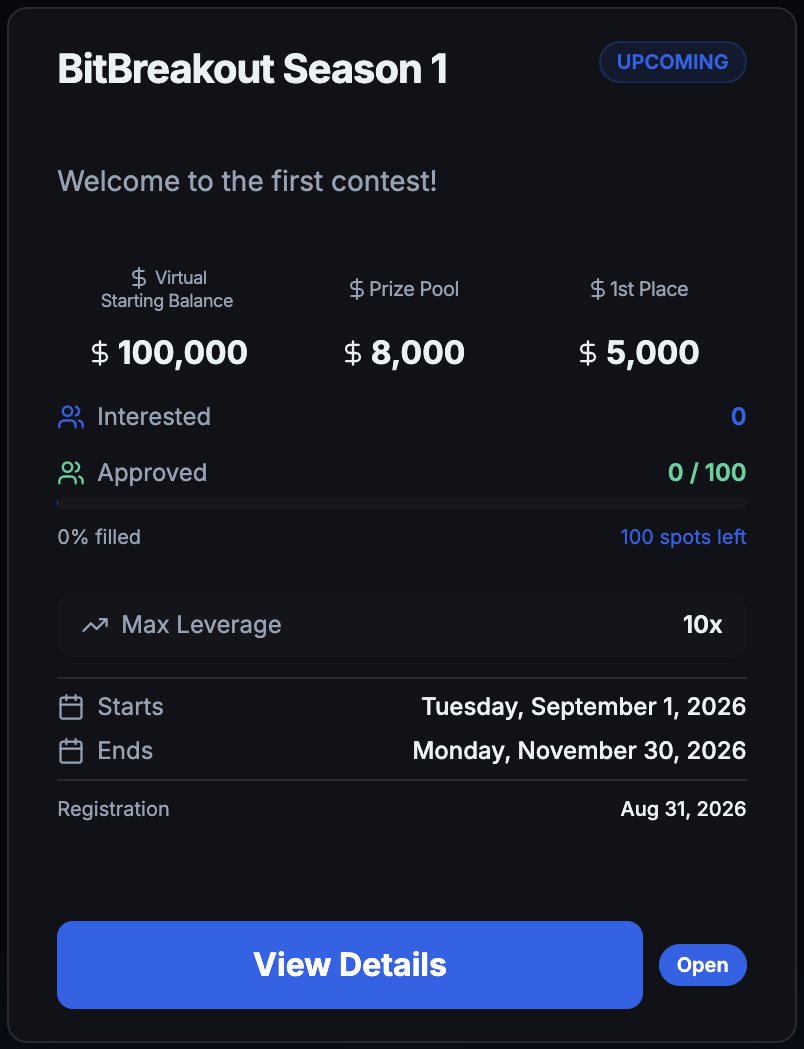
Open the Contests page. Each card shows the virtual starting balance, prize pool, maximum leverage, and the registration and start/end dates. Pick a contest whose registration is open and join its waitlist — it is free. Up to 100 participants are selected at random from the waitlist, and if you are selected we will invite you to confirm your place.
4. Tour the trading terminal
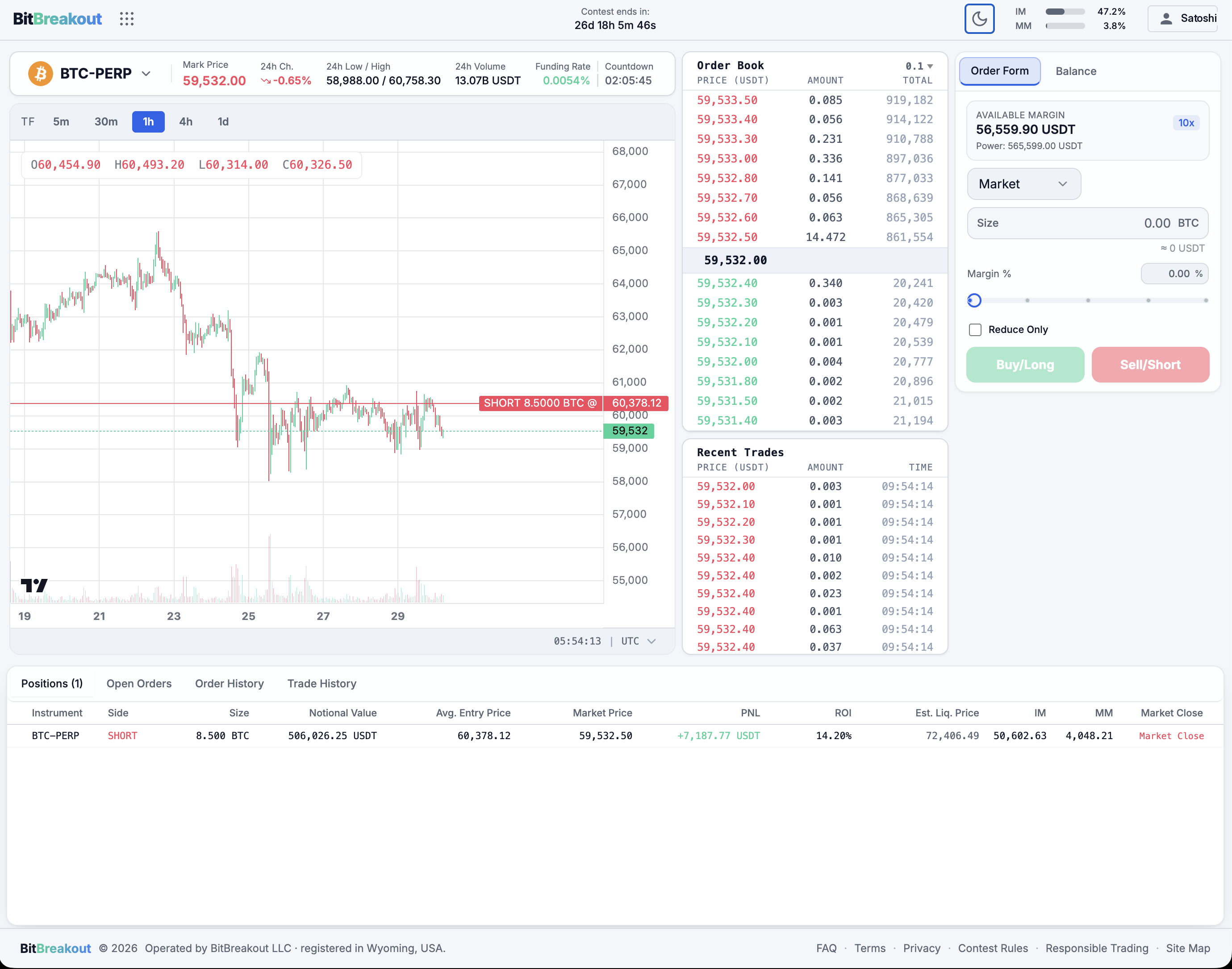
Open the terminal. The layout has four areas:
- Top bar — the market selector (e.g. BTC-PERP), mark price, 24h change, 24h high/low, 24h volume, the live funding rate and countdown, and your IM/MM (initial- and maintenance-margin) meters.
- Chart (left) — candlesticks with timeframe buttons (5m, 30m, 1h, 4h, 1d).
- Order book and recent trades (centre) — live depth and executions.
- Order form (right) — your available margin and buying power, the order-type selector, size, a margin-percentage slider, the Reduce-Only flag, and the Buy/Long and Sell/Short buttons.
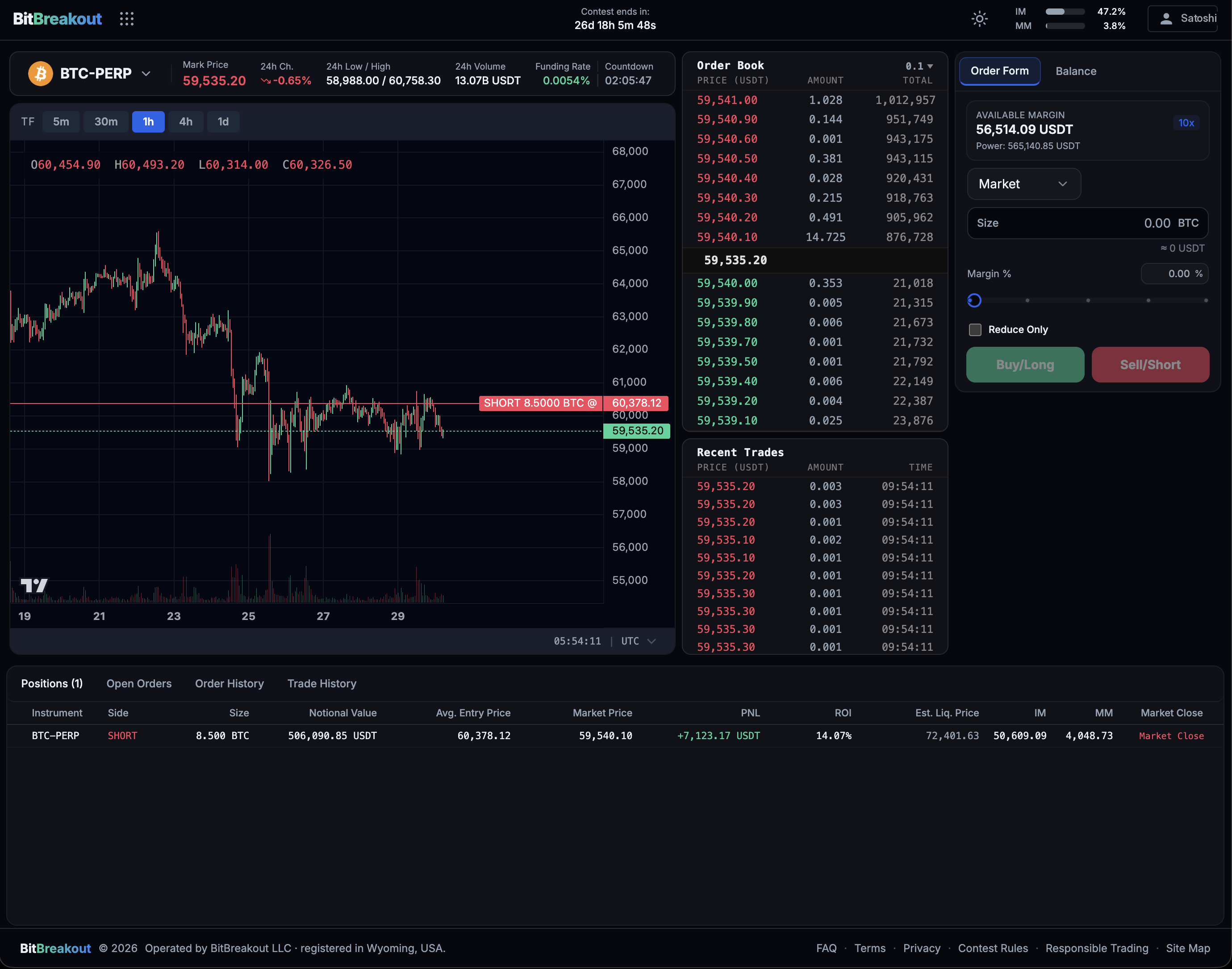
You can switch to a light theme with the sun/moon toggle in the top bar — everything works the same way.
5. Place your first trade
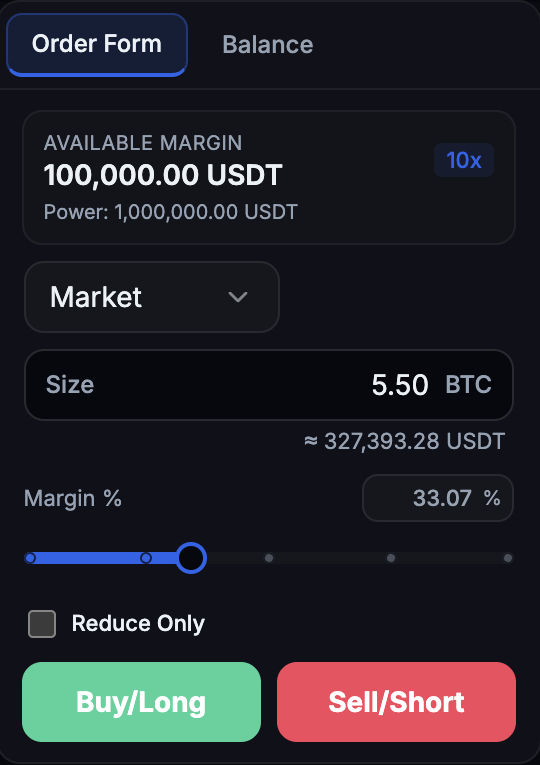
In the order form, leave the type on Market for your first trade, enter a small size (or drag the margin slider), and click Buy/Long to go long or Sell/Short to go short. The order fills immediately by walking the order book at the volume-weighted average price of the levels it consumes. Remember that a taker fee of 0.04% applies, that a market order can incur slippage (below), and that leverage multiplies both gains and losses.
6. Read your position
Once filled, your open position shows your size, entry price, mark price, leverage, unrealised PnL, and estimated liquidation price, all updating live. Your IM/MM meters in the top bar move as your risk changes. Positions are valued at the mark price, which can differ momentarily from the last trade on the tape — that is normal.

7. Protect a trade with a stop
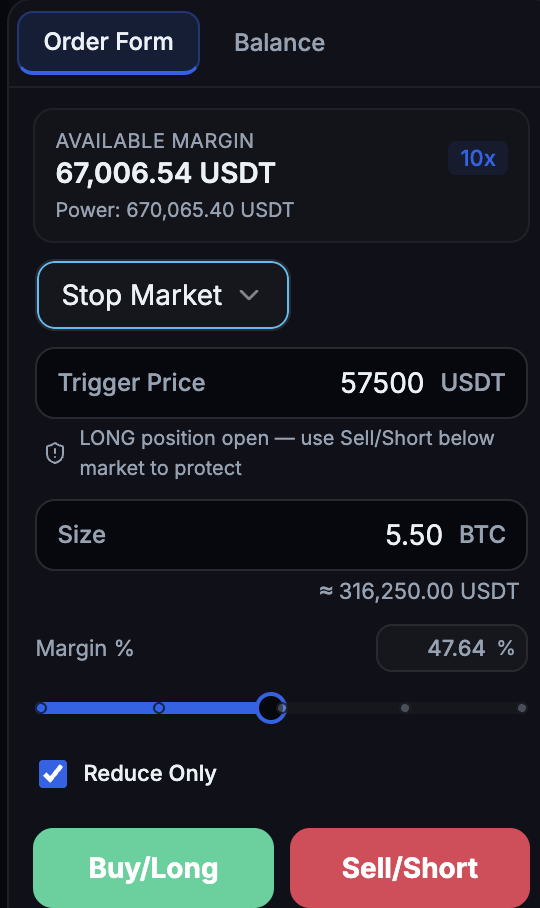
To set a protective stop, choose Stop-Market and a trigger price. A sell stop (to protect a long) must be below the current price; a buy stop (to protect a short) must be above it. Tick Reduce-Only so the stop can only close, never increase, your position. When the price reaches your trigger, the stop becomes a market order.
8. Review your history and export
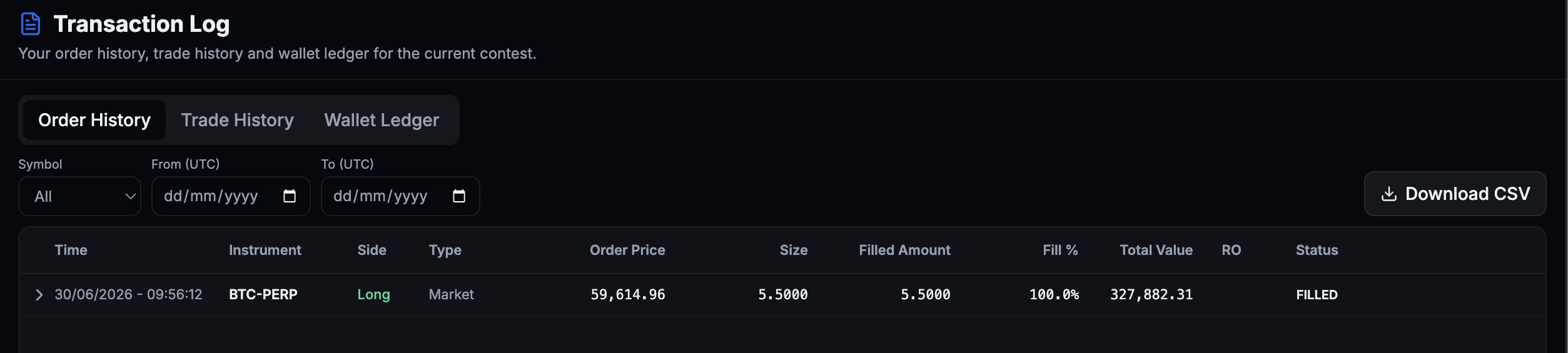
Open the Transaction Log to review your Order History, Trade History, and Wallet Ledger. Filter by symbol and UTC date range, and click Download CSV to export any tab — useful for your own analysis or to support a dispute.
Next steps
You are ready to compete. For the rules and mechanics in depth, see the Knowledge Base; for quick answers, see the FAQ; and read the Responsible Trading page before you start.